• Latest
  • Trending
  • All
  • News
  • Business
  • Politics
  • Science
  • World
  • Lifestyle
  • Tech
how to check subscriptions on your Phone

How to check subscriptions on your Android Phone 

February 12, 2025
Material 3 Expressive Redesign

Google Brings Material 3 Expressive Redesign to Wear OS Apps

October 4, 2025
Digital Gift Cards

Google Play Store Adds Digital Gift Cards for Instant Sharing

October 4, 2025
Google Wallet Material 3 redesign

Google Wallet expands Material 3 redesign rollout

October 3, 2025
Full-screen account menu

Full-screen account menu arrive in Google apps for a unified look

October 3, 2025
YouTube Music updated icons

YouTube Music refreshes its look with updated icons

October 2, 2025
FAB new location button

Google Maps on Android gets FAB new location button

October 2, 2025
Google Home Speaker

The new Google Home Speaker will debut in 2026

October 2, 2025
Google Drive AI ransomware detection

Google Drive desktop gets AI ransomware detection

October 1, 2025
High Blood Pressure Screening

Google Explores Pixel Watch High Blood Pressure Screening

September 30, 2025
Google Drive Super-Fast AI Scanner

Google Drive Rolls Out Tests for Super-Fast AI Scanner

September 30, 2025
‘Ask Home’

Google Home App Redesign Brings ‘Ask Home’ to iPhone

September 29, 2025
Material 3 Expressive Redesign

Where Google’s Material 3 Expressive Redesign Is Arriving

September 29, 2025
FuchsiaWire
  • Fuchsia OS
  • Android
    • Samsung
    • Android 13
    • Android 14
    • Auto
    • OnePlus
    • Oppo
    • Wear OS
  • Nest
    • Nest Audio
    • Nest Cam
    • Nest Doorbell
    • Nest Hub
    • Nest Hub Max
    • Nest Mini
    • Nest Thermostats
  • Chrome
    • Google Chrome
    • ChromeOS
  • TV
    • Google TV
    • Android TV
    • Chromecast
  • Workspace
    • Gmail
    • Google Calender
    • Google Chat
    • Google Docs
    • Google Drive
    • Google Keep
    • Google Meet
  • Pixel
    • Pixel 7
    • Pixel 7 Pro
    • Pixel 8 pro
    • Pixel Buds Pro
    • Pixel watch
    • Pixel watch 2
  • YouTube
    • YouTube
    • YouTube Music
    • YouTube TV
  • Reviews
  • Exclusives
No Result
View All Result
FuchsiaWire
No Result
View All Result
Home Android

How to check subscriptions on your Android Phone 

by Bena Ilyas
February 12, 2025
in Android
0
how to check subscriptions on your Phone

check subscriptions on your Android Phone

494
SHARES
1.4k
VIEWS
Share on FacebookShare on Twitter

One thing that every Android phone user should be careful about is subscriptions on their Android. You may have many unexpected bills you had no idea about or subscriptions you have not been using for a long time. 

As you read this, you might be surprised at how many apps or services you use that have a subscription service. How easy it is to lose track of them or be signed up for even more you don’t need. 

This article will explain how to check your Android phone’s subscriptions and give some helpful advice. We will also look at the problems that most people encounter when they forget subscription services and the best ways to avoid them. 

Table of Contents

Toggle
    • Methods to Check subscriptions on your Android 
    • Using Google Play Store 
    • Using Device Settings 
    • Via Web Browser 
  • How to Cancel Subscriptions 
    • Through Google Play Store 
  • Tips for preventing accidental cancellations 
    • Using Device Settings 
  • Conclusion 

Methods to Check subscriptions on your Android 

Using Google Play Store 

Move your finger and tap the Play Store icon on your home screen or app drawer. 

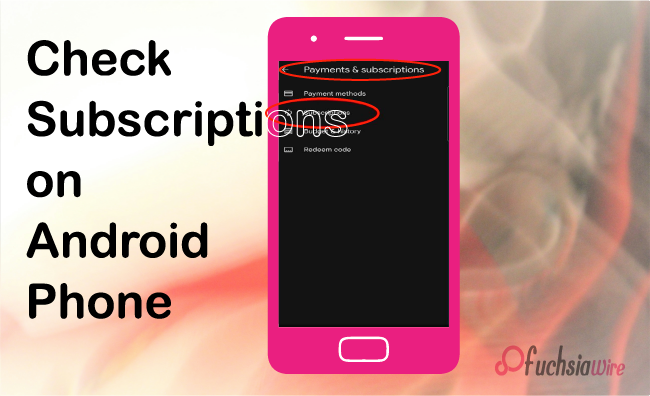
Tap on your profile icon. This can be viewed at the top of the screen on the right side, usually with the menu bar. 

Select “Payments & subscriptions ” from the revealed list. “ 

This will display a list of all your active subscriptions. 

Using Device Settings 

Press on the “Settings” icon/shortcut on your home screen or from your app screens. 

It varies depending on the device, but it’s mainly under the ‘General Management’ category or any with the word management. 

Tap on “Google” or “Accounts” to reveal the list of Google accounts you have signed in with. 

Select the account to which you wish to see the subscriptions. 

You should see the list of active subscriptions. 

Via Web Browser 

Open the default web browser you wish to use on your Android phone. 

As stated earlier, you can access the page by typing the URL below in your browser’s address bar. 

If you still need to log in to your Google account, the individual enters their account details. 

Tap on your profile icon. ‘About’ is in the right-most part of the website’s header bar. 

In the drop-down list, select “Payments & subscriptions. 

Tap on “Subscriptions.” This will display a list of the many active subscriptions. 

How to Cancel Subscriptions 

Through Google Play Store 

Touch the pictogram of the Play Store app on your home screen or a list of the apps. 

Tap on your profile icon. This is at the far right corner of the screen, and when you point down, it turns into a delta or inverted V. 

A pull-down list will appear. Click it to reveal “Payments & subscriptions. “ 

Tap on “Subscriptions.” This will take you to a page listing all your active subscriptions. 

Click the subscription you wish to cancel. 

You will find a link saying you’ll turn off the subscription. Go ahead and tap on it. 

If a user decides they do not want an account with ‘X,’ they should go to the cancellation menu and follow all onscreen prompts to complete the cancellation. 

Tips for preventing accidental cancellations 

Review subscription details: Before canceling a subscription, review the details to ensure you cancel the right one. 

Consider pausing or downgrading: But if you do not wish to cancel fully, you should try other options, such as putting your subscription on hold or trying a subscription at an inferior level. 

When considering some subscriptions, one should consider certain cancellation policies that may be in force occasionally. 

Using Device Settings 

Click on the “Settings” application icon, which is either on the home screen or in the application menu. 

Depending on the specific device, it may be under “General Management” or something similar. 

Tap on “Google” or “Accounts.” This will create a drop-down list of all your Google accounts. 

Select the particular account for which you want to check subscriptions. 

You should enter the subscription list page to find all the active subscriptions. 

Find the subscription you want to cancel: Click on which subscription you wish to unsubscribe. 

Conclusion 

It is essential to watch out for subscription services because charges can build up in the background, which you may need to be aware of. Thus, you only pay for the services you need. As stated in this guide, some people go through subscriptions now and then, avoiding subscribed services that are not useful and being careful with subscriptions that renew automatically. 

Also, figuring out how to make extra reductions, like lowering or suspending subscription services, can add to your cost-saving plan. If there are any complications, do not hesitate to seek help from customer Service. You can eliminate many subscriptions and save a lot of cash through such measures. 

Suggested Reading: Android Introduces Cross-Device Services and more

Share198Tweet124
Bena Ilyas

Bena Ilyas

Bena Ilyas is a rising star in the world of tech writing, bringing a fresh perspective and innovative insights to every article. With a background in digital marketing and a passion for exploring the intersection of technology and human behavior, Bena's writing offers readers a unique blend of technical expertise and relatable storytelling

  • Trending
  • Comments
  • Latest
Fuchsia Version 16 Rolling Out to Nest Hub Devices

Fuchsia Version 16 Rolling Out to Nest Hub Devices

August 28, 2025
What June 2025 Brings to Google System Update

Android’s March 2025 Google System Updates

August 13, 2025
What’s fresh in Android’s April 2025 Google System Update

Android’s March 2025 Google System Updates: What’s New

August 9, 2025
Material 3 Expressive Redesign

Google Brings Material 3 Expressive Redesign to Wear OS Apps

5
Samsung's Now Bar Might Actually Be Useful in One UI 8

Dеlеtе Unwantеd Googlе Account on Your Mobilе

2
Google Pixel

The­ Cutting-Edge Feature­s Introduced In The Latest Google­ Pixel

1
Material 3 Expressive Redesign

Google Brings Material 3 Expressive Redesign to Wear OS Apps

October 4, 2025
Digital Gift Cards

Google Play Store Adds Digital Gift Cards for Instant Sharing

October 4, 2025
Google Wallet Material 3 redesign

Google Wallet expands Material 3 redesign rollout

October 3, 2025
FuchsiaWire

Copyright © 2015 FuchsiaWire.

FuchsiaWire

  • About
  • Privacy & Policy
  • Contact
  • Privacy Policy
  • Disclaimer

Follow Us

No Result
View All Result
  • Fuchsia OS
  • Android
    • Samsung
    • Android 13
    • Android 14
    • Auto
    • OnePlus
    • Oppo
    • Wear OS
  • Nest
    • Nest Audio
    • Nest Cam
    • Nest Doorbell
    • Nest Hub
    • Nest Hub Max
    • Nest Mini
    • Nest Thermostats
  • Chrome
    • Google Chrome
    • ChromeOS
  • TV
    • Google TV
    • Android TV
    • Chromecast
  • Workspace
    • Gmail
    • Google Calender
    • Google Chat
    • Google Docs
    • Google Drive
    • Google Keep
    • Google Meet
  • Pixel
    • Pixel 7
    • Pixel 7 Pro
    • Pixel 8 pro
    • Pixel Buds Pro
    • Pixel watch
    • Pixel watch 2
  • YouTube
    • YouTube
    • YouTube Music
    • YouTube TV
  • Reviews
  • Exclusives

Copyright © 2015 FuchsiaWire.